Managing Organization Users 
Org Admins can add new users and edit the privileges of existing users. From the User Admin tab within ThreatStream settings, you can add users, remove users, edit privileges of existing users, and export user information in the CSV format.
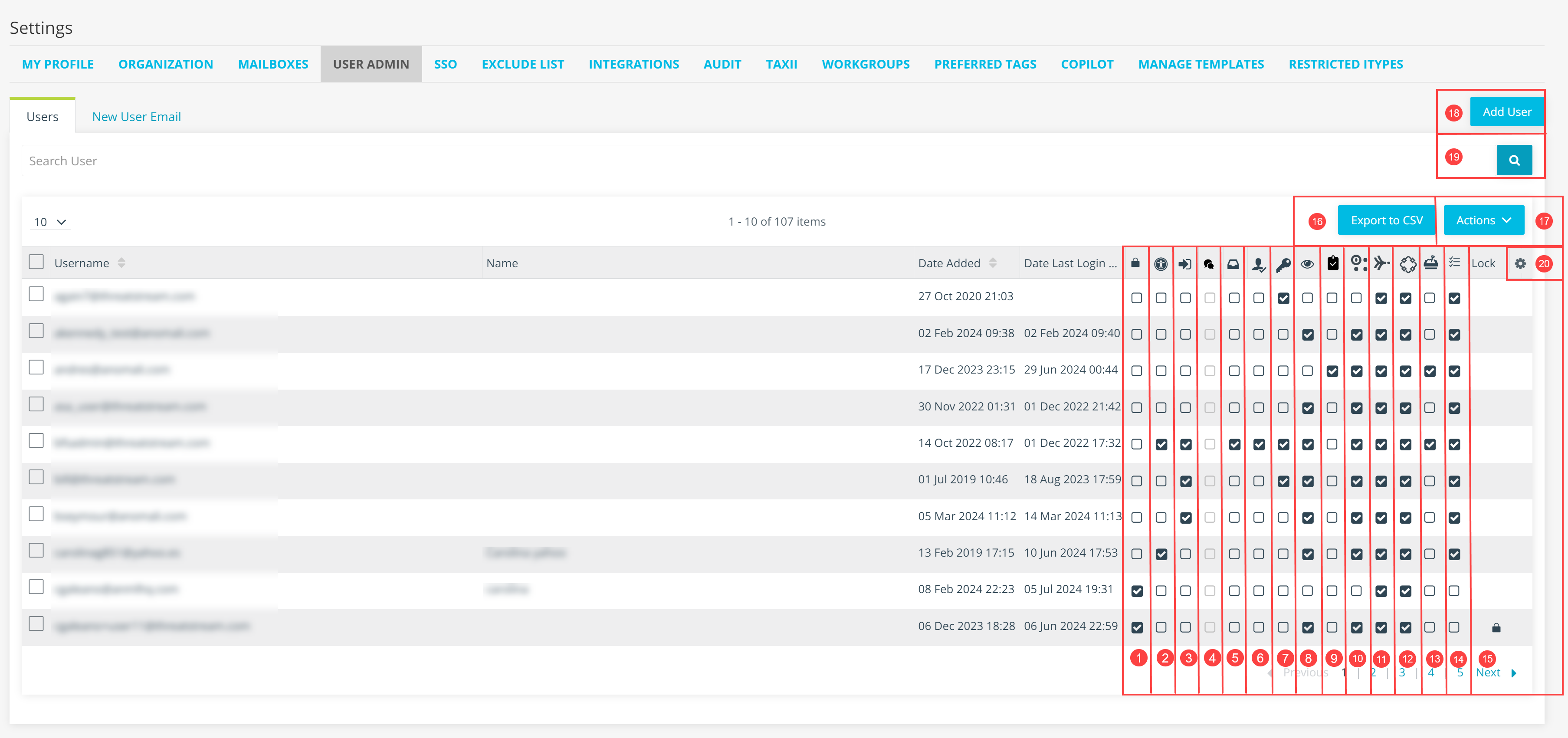
 Read Only Account: Provides read-only access to ThreatStream. Read Only users can view and export intelligence on ThreatStream but cannot create intelligence of any kind. For more information, see Read Only User Privileges.
 Org Admin: Grants users Org Admin privileges.
For organizations that use Anomali Security Analytics: The Org Admin privilege in ThreatStream also gives users administrator privileges in Anomali Security Analytics. Note that, for organizations participating in the Anomaly Security Analytics release, users must have the Can use Security Analytics permission to access the Security Analytics user interface.
 Approve Intel: Enables a user to approve imported intelligence.
 Can Use Chat: Enables a user to use chat on ThreatStream. See Enabling Chat for Your Organization for more information.
 Import to TAXII Feeds: Enables a user to push data from TAXII clients to your ThreatStream TAXII server.
 Create Anomali Community Intel: Enables a user to create intelligence shared with the Anomali Community. This includes importing observables, creating Sandbox Reports, as well as modifying tags and commenting on observables and Sandbox Reports shared with the Anomali Community.
 Force Reset Password: When selected, a user is asked to reset their passwords the next time they log-in.
 Show API Key For Users: Enables a user to access their dedicated ThreatStream API key on the My Profile tab within ThreatStream settings. This permission also determines whether users can view software downloads on the ThreatStream Downloads page.
 Can Audit: Grants a user read-only access to all ThreatStream settings and admin pages. All other permissions are grayed out and cannot be updated by the user with Can Audit permission.
 Can use Security Analytics: Enables a user to access Anomali Security Analytics through the link in the ThreatStream top navigation bar. Users that do not have this permission are prevented from accessing the Anomali Security Analytics user interface. Read Only users can be given the Can use Security Analytics permission, thus enabling Read Only users to access the Anomali Security Analytics user interface.
 Can Use ThreatStream (LA): Enables a user to access ThreatStream. Users that do not have this permission are prevented from accessing the ThreatStream user interface. Read Only users can be given the Can use ThreatStream permission, thus enabling Read Only users to access the ThreatStream user interface.
 Can Use Copilot (LA): Enables a user to access Anomali Copilot Suite.
 Submit Sandbox: Enables a user to submit malware to a sandbox for detonation. This privilege also applies to sandbox submissions made through phishing mailboxes. See Analyzing Malware with the ThreatStream Sandbox for more information.
 Can Use Rules: Enables a user to create and edit rules. When the setting is disabled, users view rules and their matches, but they cannot create or edit rules even via advanced searches. By default, the Can Use Rules setting is enabled.
 Unlock Account: If a user account is locked due to consecutive failed login attempts, an Unlock Account icon is displayed. See Password Lockout for information on configuring a password lockout policy.
 Export to CSV: Click to export user information in the CSV format. Exports include all information visible from the User Admin tab—such as usernames, email addresses, dates users were added, and permissions—and timestamps of most recent logins. Exports are limited to 10,000 users.
 Actions: Click the Actions menu to apply the following actions to selected users:
-
Deactivate: Remove selected users from your organization user list. After taking this action, the users are disabled. The deactivated users are no longer displayed on the Users tab and cannot log in to ThreatStream. To reactivate a user's account, add a new user with the email address associated with the deactivated account.
Note: If your use case involves multiple organizations:ThreatStream does not support moving users between organizations. After removing a user, the user cannot be created on a different organization with the same email address. If you need to move users between organizations, please contact Anomali Support. -
Force Reset Password: Force selected users to create a new password on their next log-in to ThreatStream.
-
Reset API Key: Reset the existing API Key for selected users.
-
Reset MFA: Reset MFA configuration for selected users. The users will need to reconfigure their MFA settings on their Google Authenticator app the next time they log in. See Log in the First Time Using MFA for more information on reconfiguring MFA.
-
Unlock: Unlock user accounts that were locked due to consecutive failed login attempts.
-
Use MFA: Include users in multi-factor authentication.
Note: The Use MFA permission is only available if the Use Multi-Factor Authentication (MFA) setting is enabled on the Organization tab. See Viewing and Editing Organization Settings for more information.
 Add User: Create a new user. See Adding a New Users for details.
 Search: Search users by their profile name or email.
 Table Settings: Select the columns you want to be displayed. You can select the following columns: Username, Name, Date Added, Date Last Login, Read Only Account, Org Admin, Approve Intel, Can Use Chat, CIT, Can Share Intelligence, Force Reset Password, Can Show Api Key, Submit Sandbox, Can Use Security Analytics, and Lock.
- In the bottom-left corner of the side navigation panel, click
 > ThreatStream and then click User Admin.
 - Click Add User.
-
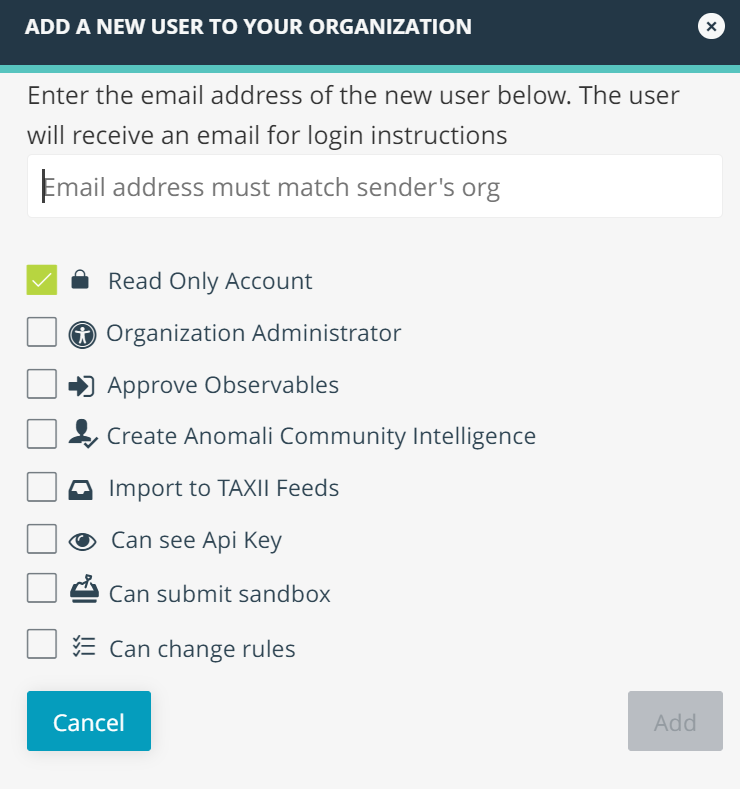
Enter the email address for the new user. The domain must match the domain of your organization.
-
Select the permissions you want to give the new user.
Note: The Use MFA permission is only available if the Use Multi-Factor Authentication (MFA) setting is enabled on the Organization tab. See Viewing and Editing Organization Settings for more information. - Click Add.
- Instruct the new user to check their email for further instructions.
To edit the permissions of existing users:
- In the bottom-left corner of the side navigation panel, click > ThreatStream and then click User Admin.
- Locate the email address of the required user in the Username column.
- Select the permissions you want to grant to the user and deselect the permissions that you want to withdraw from the user. Changes are saved automatically.